AirPlay - Cast Tv
FastSoftLibraries & Demo
4.2127.00 Reviews
- Version
- 2.6.1
- Installs
- 100.00K
- Age Rating
- Everyone
Screenshots
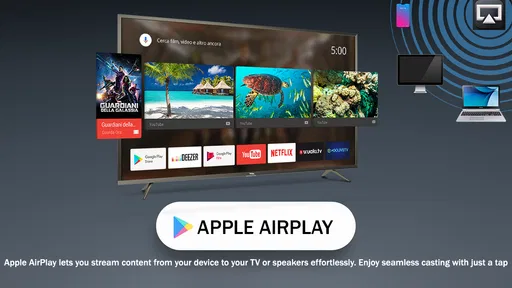
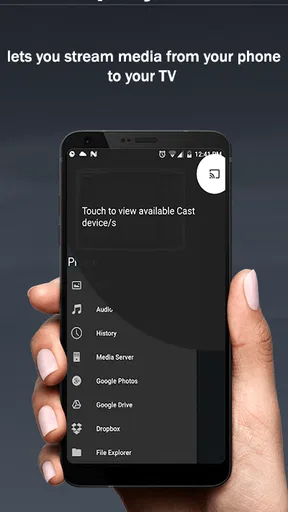
Our Review of AirPlay - Cast Tv
 Analysis by Appyee
I approached AirPlay - Cast Tv as a simple way to explore screen-casting from an Android device to a television. Its purpose is easy to understand: it is an app from FastSoft in the Libraries & Demo category, built around casting content to a TV. That narrow focus is also its main appeal. Instead of presenting itself as a large entertainment platform, it points you toward one practical task: getting something from your phone onto a bigger screen.
My first impression is that this is most useful for people who want a straightforward starting point rather than a complicated media-control system. The app is free, carries an Everyone age rating, and has reached over one hundred thousand installs. Its average score of 4.8 from more than eight hundred ratings suggests that many users find the basic idea worthwhile, although a store score should never replace checking whether your particular phone and television work well together.
The app was released on January 6, 2025, and the current version is 2.1. It supports Android 7.0 and later, which makes it accessible to people using older devices as well as newer phones. That broad compatibility is helpful, but casting is never controlled by the app alone. The television, phone, network, and the type of content you want to show all influence the final result.
What to expect before you install it
The most important expectation to set is this: AirPlay - Cast Tv is a casting tool, not a replacement for every television app or a universal guarantee that any screen will accept any phone. I would consider it a bridge between your Android device and a compatible TV setup. That distinction matters because people often install a casting app expecting it to unlock features that belong to the television, the operating system, or a separate streaming service.
In practical terms, the useful moment is when your phone can identify the TV as a destination and you can send something to it. The app’s store summary describes that central purpose without turning it into a large feature list. I appreciate that focus, because it keeps the decision simple: if you need to cast to a TV, this is worth trying; if you need editing, downloading, media organization, or a complete smart-TV replacement, you should look elsewhere.
A realistic example is a family gathering where someone has photos or a short video on a phone and wants everyone to see it without passing the handset around. Another is a presentation rehearsal, where a user wants to inspect how phone-based material looks on a larger display. In both cases, the value is not advanced control. It is reducing the distance between the small screen in your hand and the TV in the room.
I would also keep expectations modest around performance. Casting can feel immediate when the devices cooperate, but it may be less comfortable for fast-moving interaction, precise gaming, or anything where a delay would be distracting. A phone screen and a television do not always behave like a wired monitor. For casual viewing and showing selected content, that trade-off may be acceptable. For responsive control, it may not be.
Who will get the most from it
This app makes the most sense for a first-time caster, a household that occasionally needs a larger display, or someone who wants to test a casting workflow before committing to more involved hardware. It is also a reasonable option for users whose television already supports the kind of connection they need but whose phone does not make the process obvious.
I would be more cautious if your main goal is dependable professional presenting, competitive mobile gaming, or a permanent whole-home media setup. In those situations, a wired connection, a dedicated streaming device, or the television manufacturer’s own solution may be more predictable. AirPlay - Cast Tv is better understood as a convenient experiment and everyday utility than as a guarantee of studio-level reliability.
Getting through the first setup
After installation, I would begin with the simplest possible arrangement: place the phone and TV on the same home network, turn on the television, and keep the relevant input or casting screen ready. This is not a glamorous step, but it prevents the most common early confusion. If the devices are separated across different networks, the app may have no clear path to the screen you want to use.
Once the app opens, I would look for the device-discovery area rather than immediately changing several phone or TV settings. Give the app a moment to present the available destination, then compare the name shown on the phone with the television you intend to use. In a home with several screens, this small check can save time and prevent sending content to the wrong room.
If the TV does not appear, I would troubleshoot in a calm order. First, confirm that both devices are connected to the same network. Next, check that the television is awake and ready to receive a cast connection. Then close and reopen the app before making more drastic changes. Restarting both devices can also clear a temporary discovery problem, but I would not begin by changing unrelated settings or reinstalling everything.
One useful habit is to test with something uncomplicated. Choose a piece of content that is already easy to access on the phone instead of beginning with a protected service, a large file, or a complicated web page. This separates a connection problem from a content-compatibility problem. If a basic test works, you have learned that the path to the TV is functioning even if a particular source behaves differently.
Because the app is free, the initial trial is relatively low-risk from a price perspective. Still, free does not mean every setup will be equally smooth. Your television’s support, the quality of the local network, and the phone’s own behavior remain important. I would treat the first session as a short compatibility check rather than assuming that installation alone completes the setup.
The first successful action matters more than the menu
The first meaningful success is not simply seeing a TV listed in the app. It is sending something to that screen and confirming that the result is usable from a normal viewing distance. I recommend starting with a short photo sequence or a brief video. That gives you a clear visual confirmation and lets you notice whether the image appears, whether the sound follows, and whether the phone remains responsive enough for the task.
For a first attempt, I would avoid testing during an important event. Try it before guests arrive, before a presentation begins, or before you need to show a particular memory to someone. This creates room to learn the process without pressure. Once you know the path, the app becomes much more practical because you are no longer discovering the connection while everyone is waiting.
A small but valuable workflow is to prepare the content on the phone first. Open the photo album, locate the video, or arrange the material you want to show before starting the cast session. This reduces the amount of searching after the connection is active. It also makes it easier to tell whether any delay comes from the casting connection or simply from hunting through a crowded phone.
I would keep the phone charged during longer sessions, particularly if you are using it as the source and controller. Casting does not turn the phone into a passive remote in every situation; you may still need it to select or change what appears. Keeping the display active can also affect battery use. That is not a flaw unique to this app, but it is a practical detail that first-time users often discover only after a long viewing session.
When the first cast works, test stopping it deliberately rather than just locking the phone or leaving the room. Knowing how to end the session is part of a successful setup. It prevents the next person who uses the TV from finding your content still active and gives you confidence that you can control the connection when you need to.
Common confusion and sensible workarounds
The word “AirPlay” can create an expectation that every Apple device, Android phone, and television will cooperate in exactly the same way. I would not make that assumption. The app is presented for casting from a mobile device to a TV, but the exact experience depends on the receiving screen and the source content. If your setup is built around Apple-only workflows, an Apple-native option may be a better fit. If your setup is Android-centered, this app is more relevant to investigate.
Another common misunderstanding is treating a TV that can display streaming services as automatically ready for every form of phone casting. Those are related capabilities, but they are not identical. A television may have excellent built-in apps and still require a compatible casting route for phone content. When the connection fails, check the TV’s own documentation and input options instead of assuming that the app itself is broken.
Content can also behave differently. A locally stored photo may be a simpler test than material controlled by a separate service. Some sources may restrict external display, while others may use their own casting button and connection method. If one item fails, I would test another type of content before deciding that the entire app is unusable. This is one of the most useful diagnostic steps because it avoids confusing source restrictions with device discovery.
Network quality is another hidden variable. A phone may show that it is connected while the network is still congested or unstable. When the picture pauses, the audio falls behind, or the connection drops, moving closer to the router can be more useful than repeatedly tapping the cast control. If other people are using the same network heavily, a short test at a quieter time can reveal whether the problem is the app or the environment.
Screen orientation can be confusing too. A portrait photo may not fill a wide television, and that does not automatically indicate a failed cast. The phone’s original shape and the TV’s shape are different, so empty space or cropping may be part of the presentation. For a family slideshow, I would select landscape material where possible and preview important images before showing them to a group.
There is also a difference between mirroring and sending content. A user may expect every tap, notification, or phone screen to appear on the TV, while the practical result may be better suited to displaying selected material. I would avoid sensitive notifications and private conversations during a session. Even when the intended content is harmless, an unexpected phone alert can become visible to everyone in the room.
Where alternatives can be the smarter choice
The usual alternatives fall into three broad groups: built-in TV casting, dedicated streaming hardware, and a direct cable connection. Built-in tools can be more convenient when your phone and television come from the same ecosystem. Dedicated hardware may offer a more consistent experience for a household that casts frequently. A cable is less elegant, but it can be preferable when delay and wireless uncertainty are unacceptable.
AirPlay - Cast Tv has an advantage for someone who wants to try a software-based route without paying for a separate device. Its free price makes that experiment easy. The trade-off is that software cannot remove every compatibility difference between an Android phone and a television. If you repeatedly need the same connection for work, teaching, or events, the extra predictability of a dedicated or wired option may justify choosing something else.
I would also compare it with the TV’s own casting method before settling on a routine. The built-in route may have fewer steps for a particular television, while this app may be useful when the native path is difficult to find or when you want a single starting point on the phone. The better choice is the one that makes your specific content appear with the least friction, not necessarily the one with the most recognizable name.
How I would use it in everyday life
For a normal evening, I would connect before everyone sits down, verify the destination, and begin with a short piece of content. If the purpose is showing holiday photos, I would prepare an album and keep the phone nearby for navigation. If the purpose is discussing a document or visual reference, I would first check that small text remains readable on the TV. A larger screen is not automatically a clearer screen; the original layout still matters.
For a presentation rehearsal, I would use the app as a visual check rather than the only backup. I would inspect the first and last screens, any pages with small text, and the transition between items. This is a concrete strength of casting from a phone: you can catch framing problems before presenting to other people. The weakness is that a wireless path can introduce uncertainty, so I would keep an alternative ready for an important session.
For children or older relatives, the app may be useful when the goal is to show a limited selection of familiar content on a larger display. I would set up the connection myself first and leave the source material organized. That reduces the need for repeated searching and lowers the chance of exposing unrelated phone content. The app can simplify the bridge to the TV, but it does not replace thoughtful preparation.
For gaming, my judgement is more cautious. A large screen can make a game visually appealing, but any noticeable input delay can make direct control frustrating. I would only use this approach for relaxed games where timing is not critical. Fast competitive play is a situation where a wired display or a purpose-built gaming setup is likely to feel better.
Small habits that make the experience smoother
- Test the exact TV before an important occasion. A setup that works in one room may not behave identically in another.
- Keep the first test short and use simple local content so you can identify the real source of a problem.
- Prepare the album, video, or document before casting instead of searching while the TV is already showing the phone.
- Check privacy-sensitive notifications and close unrelated material before displaying the phone to a group.
- End the session intentionally, then confirm that the television has returned to its normal state.
These habits are more important than repeatedly reinstalling the app. Casting problems are often caused by the relationship between devices, network conditions, and content. A methodical workflow gives you useful information after each attempt, whereas random changes make it difficult to know what actually fixed the issue.
My closing view for first-time users
AirPlay - Cast Tv is a focused, approachable app for people who want to investigate casting from an Android phone to a television. FastSoft has positioned it in a useful space for casual display tasks, and the combination of a free download, Everyone rating, and support for Android 7.0 or later makes it easy to try on a wide range of devices. The strong 4.8 average and more than eight hundred ratings are encouraging, while the install count of over one hundred thousand shows that it has found a meaningful audience.
My recommendation is to install it when your need is specific: show photos, play a short video, inspect phone content on a larger screen, or learn whether your current TV setup can accept a cast connection. Begin with both devices on the same network, use uncomplicated content, and treat the first successful display as a compatibility test. That approach makes the process reassuring instead of mysterious.
I would skip it if you need guaranteed low-latency gaming, professional presentation reliability, or a complete replacement for the TV’s native media system. In those cases, a cable, dedicated streaming hardware, or an ecosystem-specific tool may be a better investment. For everyone else, the best reason to try this app is its low-friction path to a useful first test. It does not need to do everything to be worthwhile; it needs to help your particular phone and television communicate, and that is exactly where I would judge it.
Privacy and Permissions
See what permissions an app requests and how it handles your data.
- Wi-Fi connection information
- view Wi-Fi connections
- Other
- view network connections, allow Wi-Fi Multicast reception, full network access, prevent device from sleeping, Google Play license check
Verdict
Strengths of AirPlay - Cast Tv
- Works with many smart TVs and streaming devices
- Simple setup with clear connection instructions
- Supports casting photos, videos, and music
- Useful for sharing phone content on a larger screen
- Offers convenient playback controls from your phone
Limitations of AirPlay - Cast Tv
- Some features may require a premium subscription
- Connection quality depends heavily on Wi-Fi strength
- May have noticeable delay when mirroring the screen
- Compatibility can vary between TV brands and models
- Ads may interrupt use in the free version
Other Releases by FastSoft
View All
MirrorLink
Libraries & Demo4.2

Endoscope Camera Connector
Libraries & Demo3.6
Similar Picks in This Category
View All
PGT: GFX, Launcher & Optimizer
Trilokia Inc.4.5

AusweisApp Bund
Governikus Service GmbH3.7

Cardboard
Google LLC3.2

Gamers GLTool with Game Tuner
Trilokia Inc.4.5

Multi Web Chat - Read Secretly
World Scan & Cleaner3.8

App Cloner Premium & Add-ons
App Listo1.9
Frequently Asked Questions
What is AirPlay - Cast Tv and what can I use it for?
AirPlay - Cast Tv is designed to mirror or stream content from a mobile device to a compatible television or receiving device. After connecting both devices to the same Wi‑Fi network, you can typically display photos, videos, music, presentations, or your phone’s screen on a larger display. Its usefulness depends on the TV, streaming device, and media format being supported.
Which TVs and devices are compatible with AirPlay - Cast Tv?
Compatibility can vary depending on the version of the app and the receiving hardware. It may work with AirPlay-enabled smart TVs, Apple TV, compatible streaming boxes, and some televisions that support screen mirroring or related casting standards. Before downloading, check your TV’s specifications and the app’s current store listing, because having an iPhone or Android phone alone does not guarantee that every television will connect.
How do I connect my phone to a TV using AirPlay - Cast Tv?
First, connect your phone and television or streaming receiver to the same Wi‑Fi network. Open AirPlay - Cast Tv, allow the requested local-network or nearby-device permissions, and select the available TV from the device list. Depending on the receiver, you may need to confirm a code on the television. If the TV is not detected, restart both devices, disable VPNs, and verify that network isolation is not enabled on the router.
Why might videos fail to play or appear as a black screen?
Some streaming services protect their content with digital rights management, which can prevent screen mirroring or produce a black screen even when the connection is successful. Unsupported video formats, weak Wi‑Fi, outdated TV software, or an incompatible receiver can cause similar problems. For the most reliable results, use locally stored media or a service’s official TV app, update all devices, and keep the phone close to the wireless router.
Is AirPlay - Cast Tv free, and are there privacy or security concerns?
The app’s pricing and available features may depend on the platform, region, and current store version. Some functions can be free while advanced casting options may require advertisements, a subscription, or an in-app purchase, so review the listing before installing. Also examine requested permissions and avoid casting sensitive notifications or personal content in public. Use a trusted private Wi‑Fi network and disconnect the session when you finish.
